Can you edit professional videos on a phone?
Short answer: yes — for talking-head, social and most YouTube videos, a phone can produce an edit no viewer could tell apart from a desktop one. The longer answer depends on what kind of “professional” you mean. Here is where a phone is genuinely enough, where a computer still wins, and a workflow that works.
TL;DR
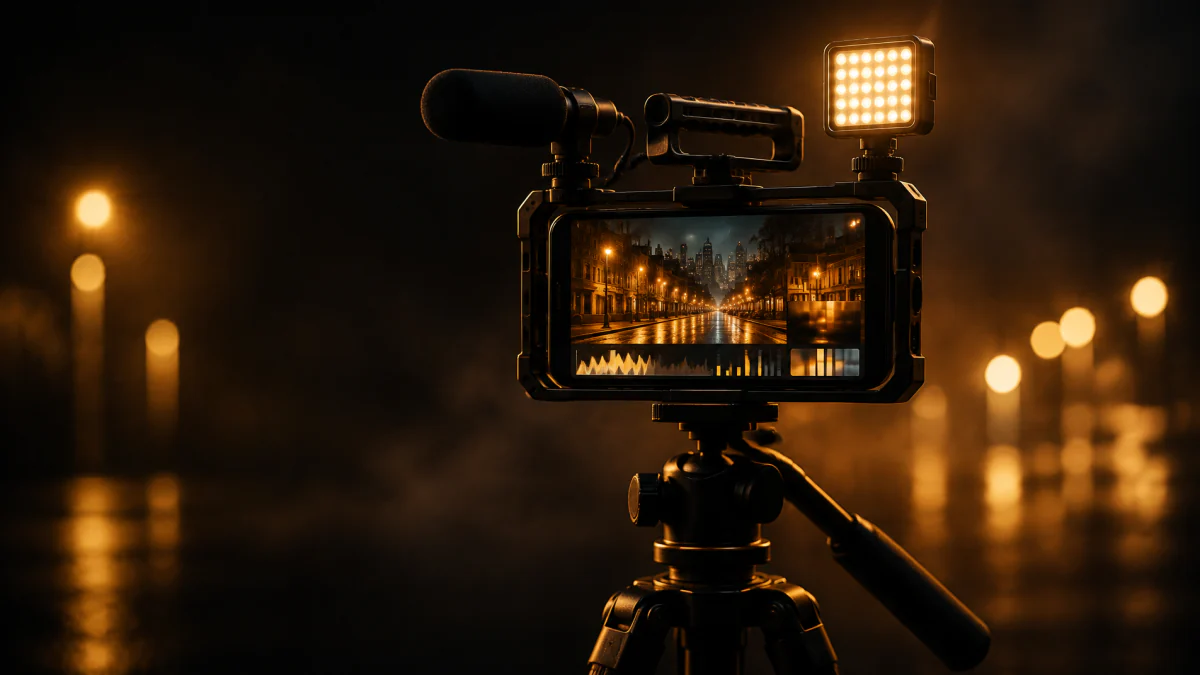
- For talking-head, short-form and most YouTube videos: yes. Current iPhones record 4K HDR video (Pro models add ProRes and Log), and mobile editors now have multi-track timelines, keyframes and auto captions.
- “Professional” is about the result — clear audio, tight pacing, visuals that support what you say, readable captions — not about the device it was edited on.
- A desktop still wins for multi-camera long-form projects, precise color grading, complex audio mixes and team review.
- On a phone the slow part isn't the tools, it's the tedium: finding pauses, retakes and B-roll. Automate that and spend your time on decisions.
In this article
What "professional" means for online video
When people ask whether phone editing is professional, they usually mean one of two things: will the result look professional, or can a phone replace a professional editor's setup? Those have different answers.
For the result, viewers don't see your software. They notice whether the audio is clear, whether the video gets to the point, whether there is dead air, whether the visuals support what is being said and whether the captions are readable. Here is how those markers map to a phone:
| Marker | What it takes | On a phone? |
|---|---|---|
| Clear audio | A decent mic, a quiet room, steady levels | Yes — mostly decided while recording |
| Tight pacing | Cutting pauses, false starts and repeated lines | Yes |
| Visuals that support the words | B-roll: stock, your own footage, graphics | Yes |
| Emphasis and rhythm | Punch-ins, zooms, cutaways | Yes |
| Readable captions | Accurate text, clear styling, sensible placement | Yes |
| Consistent color | Basic correction; grading for a specific look | Basic yes; precise grading is easier on a desktop |
| Multi-camera, many tracks, team review | Screen space, storage, shared projects | Possible, but a desktop is faster |
Capture is no longer the bottleneck
Phones have been good enough for online video for years; the current ones are good enough for cinema. Apple's iPhone 18 Pro — like the iPhone 17 Pro before it — records 4K Dolby Vision video at up to 120 fps, ProRes (up to 4K at 120 fps when recording to an external drive), ProRes RAW and Apple Log 2, and supports genlock for syncing with other cameras. Even the standard iPhone 17 records 4K Dolby Vision at up to 60 fps.
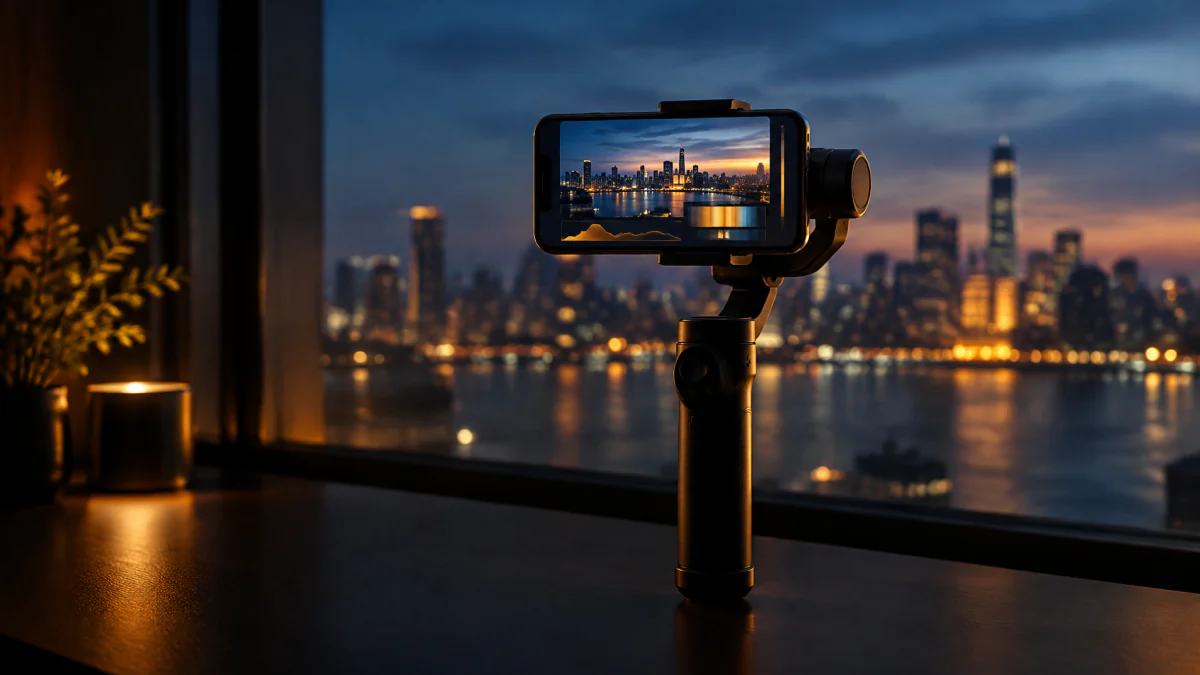
Film crews have noticed. According to the Motion Picture Association, the 2025 feature 28 Years Later was shot “primarily on iPhones”, using a custom rig that held 20 phones, alongside other cameras and drones.
For YouTube, TikTok, Reels and Shorts, image quality is no longer what separates an amateur video from a professional one. Light, sound and editing are.
Mobile editors are real editors now
The apps have caught up too. A few examples, checked in September 2026:
- Adobe Premiere on iPhone launched in September 2025 as a free app with unlimited tracks and keyframes. Adobe says the free version exports unlimited 4K videos with no watermark and includes auto captions; you pay for generative AI features.
- LumaFusion is a one-time $29.99 purchase with a pro-style timeline — six video/audio tracks plus six audio tracks, up to 24 in total with its Creator Pass on iOS — and it can edit straight from USB-C drives. Its own showcase features a working TV news editor.
- VN is free to use without a watermark and has a multi-track timeline and keyframes, with an optional VN Pro upgrade.
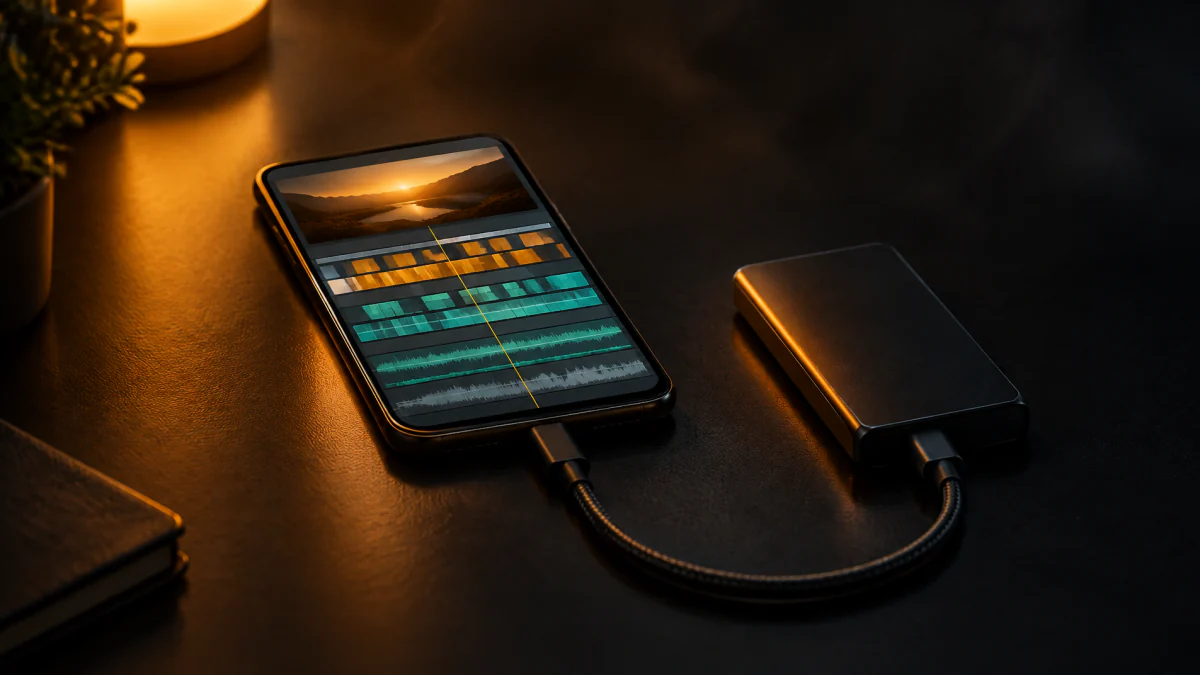
There are still gaps on the phone. Apple's Final Cut Pro and Blackmagic's DaVinci Resolve run on iPad and desktop, not on iPhone. But for cutting, layering, captioning and exporting a finished video, the tools exist. Our comparison of the best mobile video editing apps goes app by app.
Where a desktop still wins
Being honest about the limits is what makes phone editing work: pick the projects it is good at. A computer is still the better tool when you have:
- Long, multi-camera projects. A two-hour podcast shot on three cameras means syncing angles and managing a lot of media. A big screen and fast storage matter.
- Precise color work. Matching cameras or grading a specific look is easier with scopes and a calibrated display.
- Complex audio. Several microphones, music that ducks under speech and loudness targets for broadcast are desktop territory.
- Custom motion design. Hand-animated graphics and compositing still belong in dedicated desktop tools.
- Teams. Shared projects, review rounds and version history are built around desktop workflows.
- Very fine trims, all day. Frame-accurate work on a six-inch screen is possible, just slower.
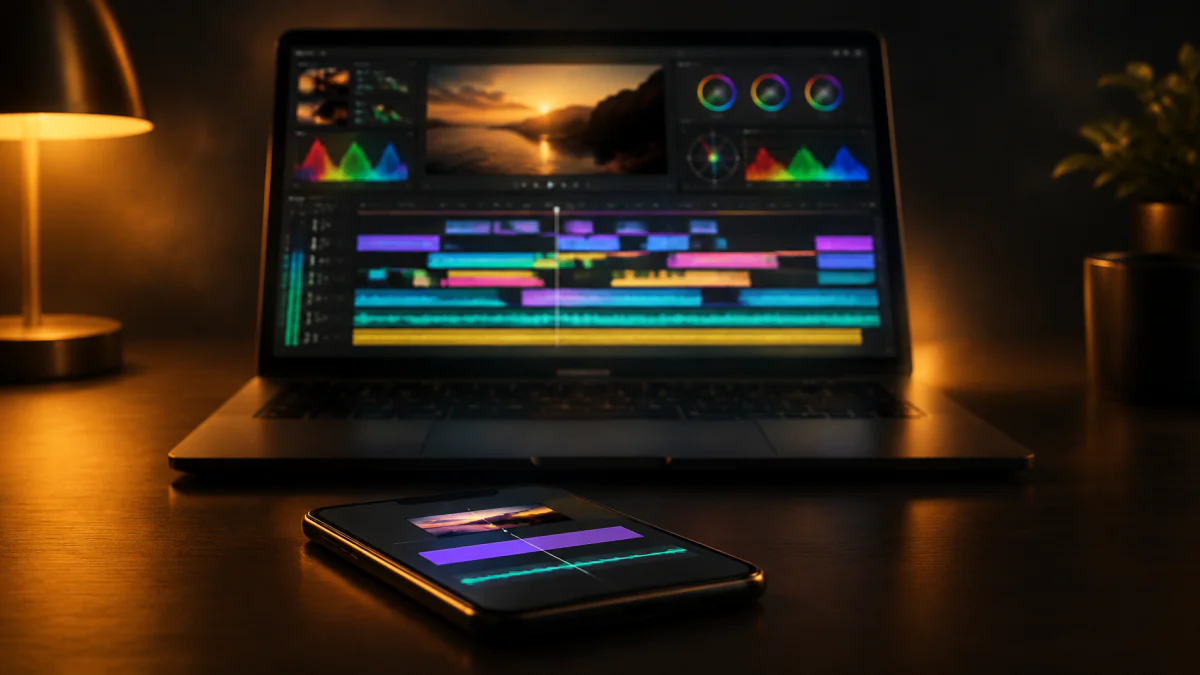
Notice what is not on that list: one person talking to the camera, a product demo, a tutorial, a short-form clip. That is most of what gets posted online, and it is exactly where a phone shines.
A professional phone workflow for talking-head videos
1. Record with the edit in mind
Face a window or a soft light, put a microphone close to your mouth, and lock focus and exposure. When you flub a line, pause and restart the whole sentence instead of picking up mid-word: clean restarts are easy to find and cut. Leave a second of silence before you start and after you finish.
2. Clean the A-roll first
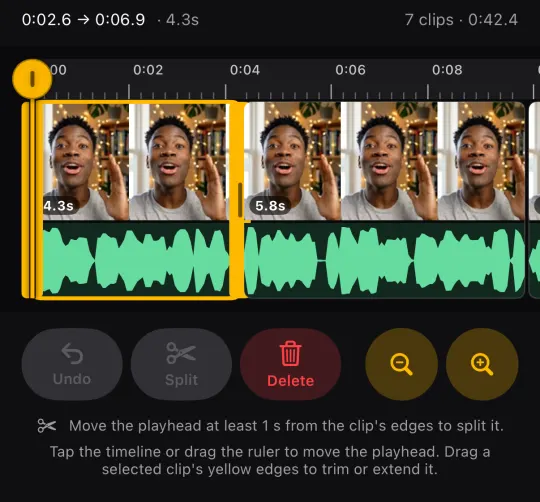
The A-roll is the recording of you talking. Remove dead air, filler words, restarted sentences and lines you said twice before you add anything else — every later step depends on this timing. Keep short natural pauses; a video with no breathing room feels rushed.
3. Add B-roll where the words are abstract
Every time you mention something a viewer could see — a place, a product, a number, a before-and-after — show it. B-roll also covers the jump cuts you made in step 2.
4. Use zooms for emphasis
A punch-in on the key line or a slow push during a story adds rhythm to a one-camera video. Use them where they mean something, not on every sentence.
5. Caption, then proofread names
Automatic captions get most words right and still stumble on names, brands and jargon. Check those before you export, and keep captions clear of your face and of the buttons that social apps draw over the video. Our guide to the best caption apps for iPhone compares the options.
6. Export at full quality and check it on a phone
Export at your source resolution, then watch the result once with sound and once muted on a phone — that is how most of your viewers will see it.
Where BRoll King fits
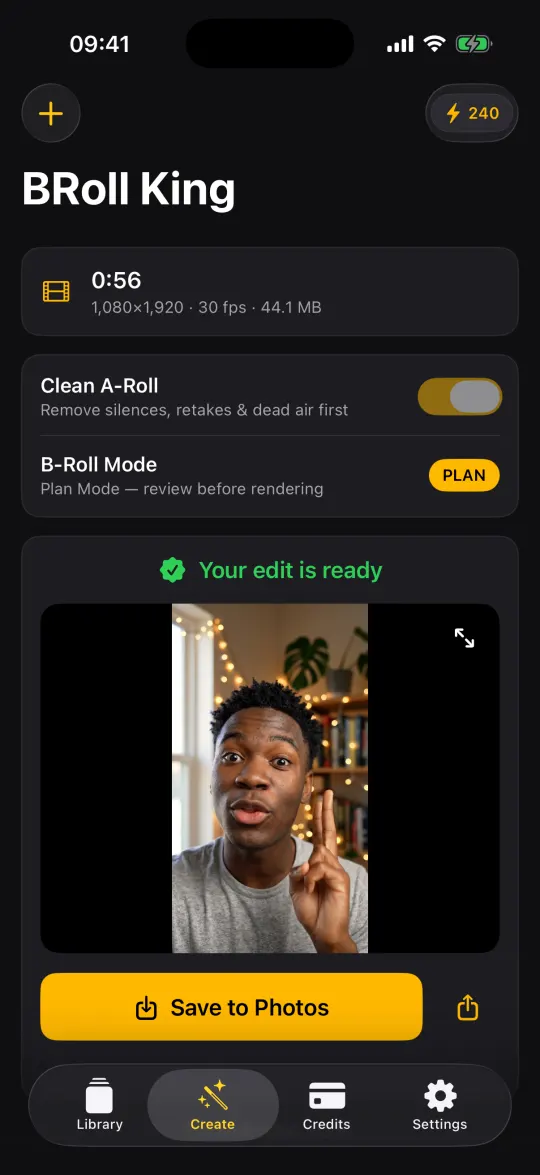
BRoll King is an iPhone app built around that workflow, for videos where you talk to the camera. It does the tedious finding for you and leaves the decisions to you:
- A-roll cleanup. Silences are measured on the phone; the transcript finds filler words, restarted sentences, lines said twice and off-script asides. Every cut is listed with a reason, and you can switch any of them off or fine-tune it on the timeline.
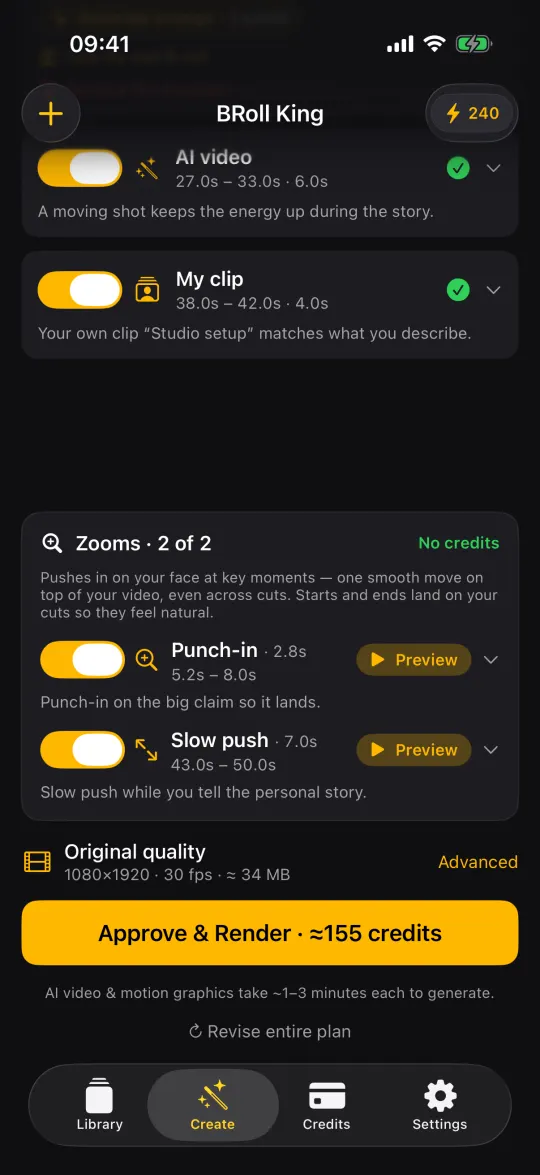
- A B-roll plan from your words. Stock photos and footage from Pexels, AI images, AI video, motion graphics or your own clips, with the estimated credit cost shown before anything is generated.
- Face-aware zooms that land on your face, with a preview for each, at no credit cost.
- Captions built from word timings, with an AI review that fixes misheard names and brands.
- On-device render. The final video is composited on your iPhone at its own resolution and saved to Photos. Only the extracted audio is uploaded, for transcription.
It isn't a general-purpose editor: there are no templates, transition packs or keyframe effects, and it is iPhone-only for now (a web version is in development). It also isn't free — transcription and AI generation use credits — but you can start with 250 free credits for your first 30 days, no card needed; plans start at $19 a month. And because it exports a normal video file, you can still finish a project in another editor if it needs something BRoll King doesn't do.
FAQ
Can an iPhone replace a computer for video editing?
For talking-head, short-form and most YouTube videos, often yes: current iPhones record 4K HDR video and mobile editors have multi-track timelines, keyframes and captions. For long multi-camera projects, precise color grading, complex audio mixes and team review, a computer is still faster.
Do professional editors use phones?
Some do, for the right jobs. LumaFusion's own site, for example, features a public-television news editor who edited broadcast stories with the app. Most professionals still do long-form and high-end work on a desktop, and use mobile editing where speed and portability matter.
What do I need to edit professional-looking videos on my phone?
Enough free storage, a microphone close to your mouth, soft light facing you, and an editor that can cut precisely, add B-roll and caption. Audio and light matter more than the phone model.
Is phone footage good enough for YouTube?
Yes. Current iPhones record 4K Dolby Vision video, and the Pro models add ProRes and Apple Log 2. For YouTube and social video, light, sound and editing make a far bigger difference than the camera.
Can I start an edit on my phone and finish it on a computer?
Yes. Any app that exports a normal video file lets you continue in a desktop editor, and several mobile editors have desktop or iPad versions. BRoll King renders a standard video to your Photos library, so you can bring it into any editor.
Sources
Competitor details were checked on September 29, 2026 on these pages. Apps change prices and features often — check the developer's own page before you decide.
- Apple Support — iPhone 17 Pro technical specifications
- Apple — iPhone 18 Pro technical specifications
- Apple Support — iPhone 17 technical specifications
- Motion Picture Association — how 28 Years Later was shot on iPhones (June 18, 2025)
- Adobe — Premiere mobile app (free version, 4K export, captions)
- Adobe newsroom — Premiere on iPhone launch (September 30, 2025)
- App Store — Adobe Premiere (unlimited tracks, keyframes)
- Luma Touch — LumaFusion purchase options and tracks
- App Store — LumaFusion (USB-C drives, multicam)
- Luma Touch showcase — a TV news editor
- App Store — VN Video Editor (free, no watermark, 4K 60 fps)
- App Store — Final Cut Pro (iPad)
- App Store — DaVinci Resolve for iPad
iPhone, Final Cut Pro and ProRes are trademarks of Apple Inc.; Dolby Vision is a trademark of Dolby Laboratories. Adobe Premiere, LumaFusion, VN, DaVinci Resolve, YouTube, TikTok and other product names are trademarks of their respective owners. BRoll King is independent and not affiliated with, sponsored by or endorsed by them. Details were checked on September 29, 2026; check each developer's site for current pricing and features.