The best caption apps for iPhone in 2026
Captions used to mean typing every line by hand. Now almost every video app transcribes speech for you, and the differences are in how well each one handles names, how the captions look and what you pay — from genuinely free and unlimited to one short video, one template or a watermark. Here are the best caption apps for iPhone, what each is best for, and the best free options, checked against the developers' own pages.
TL;DR
- Best for talking-head videos and creators who don't want to edit: BRoll King (our app). Captions come as part of a full edit: a premium word-timed transcript, an AI review that fixes misheard names and brands, and 18 animated styles. Not free: you start with 250 free credits for your first 30 days, no card needed, then plans start at $19 a month. Not on the App Store yet.
- Best free: Edits and Adobe Premiere. Both describe their auto captions as free and unlimited, with no watermark. VN's on-device caption models are free too.
- Posting to one platform? TikTok, Instagram Reels and YouTube all create captions automatically — review them before you rely on them.
- Dedicated caption apps are mostly freemium: Captions, Zeemo and VEED let you try them, then limit templates, length or resolution, or add a watermark.
- Whatever you use, proofread names and brands — that is where automatic captions go wrong most visibly.
In this article
- Burned-in or closed captions? Decide first
- The best caption apps at a glance
- BRoll King (ours): best for talking-head videos and creators who don't want to edit
- The best free caption apps for iPhone
- Captions built into TikTok, Instagram and YouTube
- Dedicated caption apps: Captions, Zeemo and VEED
- What about iMovie, Clips and Live Captions?
- How to get accurate, readable captions in any app
- FAQ
Burned-in or closed captions? Decide first
There are two kinds of captions, and the right tool depends on which one you need.
- Open (burned-in) captions are part of the picture. Everyone sees them, on every platform, in the style you chose, and nobody can turn them off. This is what most short-form editors produce.
- Closed captions are a separate text track that viewers can switch on or off. The platform draws them, and you can usually edit them after posting. YouTube, for example, accepts an uploaded SubRip (.srt) file.
The W3C's accessibility guidance draws the same line — closed captions can be hidden, open captions can't — and uses "captions" for text in the same language as the audio, "subtitles" for a translation.
Either way, captions matter. They help people who watch without sound, and they make your video usable for people who are deaf or hard of hearing: the World Health Organization estimates that over 430 million people need rehabilitation for disabling hearing loss.
The best caption apps at a glance
| Option | Price and what's free | Watermark (per the developer) | Best for |
|---|---|---|---|
| BRoll King (ours) | 250 free credits for your first 30 days, no card needed; plans start at $19/month. Not on the App Store yet | None | Talking-head videos, edited and captioned for you |
| Edits | Auto captions: free, unlimited and customizable, per Meta | None | Reels and short-form |
| Adobe Premiere | Unlimited auto captions | None | Full edits of any length |
| VN | On-device caption models; cloud captions use credits | None | Captioning without paying |
| YouTube Create | One-tap captions in selected languages | Not stated | YouTube and Shorts |
| CapCut | Auto captions exist; CapCut's pages disagree on which plans include them | None on normal exports | Trendy caption styles |
| TikTok, Instagram, YouTube | Automatic captions on the platform | Not applicable | Posting to one platform |
| Captions | Captions in 100+ languages, one caption template | None on basic edits | Trying an AI caption app |
| Zeemo | 120 credits a year, videos up to 1 minute, 720p | Removal not included free | Occasional short clips |
| VEED | Auto subtitles to start; 720p exports | Yes, on free exports | Web-based workflows |
BRoll King (ours): best for talking-head videos and creators who don't want to edit
BRoll King is an iPhone app for editing talking-head videos, and captions are one step of that edit rather than a separate app: it also removes silences, filler words and retakes, plans B-roll and adds zooms. If you only need captions on a video you've already edited, the free apps below are the simpler choice. If you're editing the video anyway, this is where its captions are strong.
- Premium transcription. Every video gets a transcript from a premium speech-to-text model with word-level timing, which the captions and their word-by-word animations follow. It costs 3 credits per minute, with a 15-credit minimum per video, and the same video is only charged once. The spoken language is detected automatically.
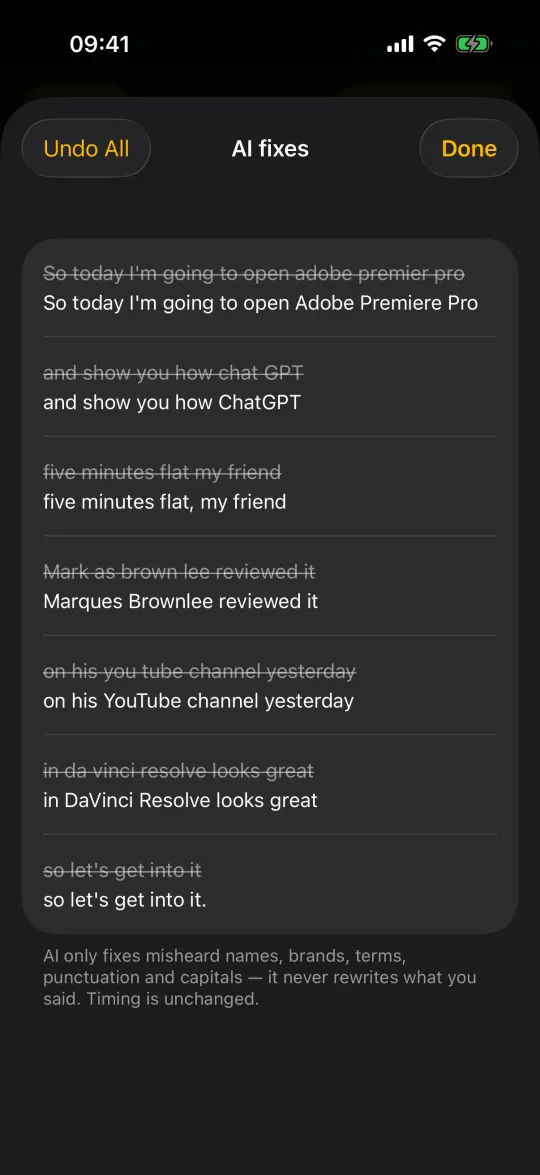
- An AI review for names and brands. On by default, the AI caption review costs 5 credits and fixes misheard names, brands and terms plus punctuation and capitals — without rewriting what you said or moving the timing. Every fix can be viewed and undone, and you can correct any word yourself before it is burned in.
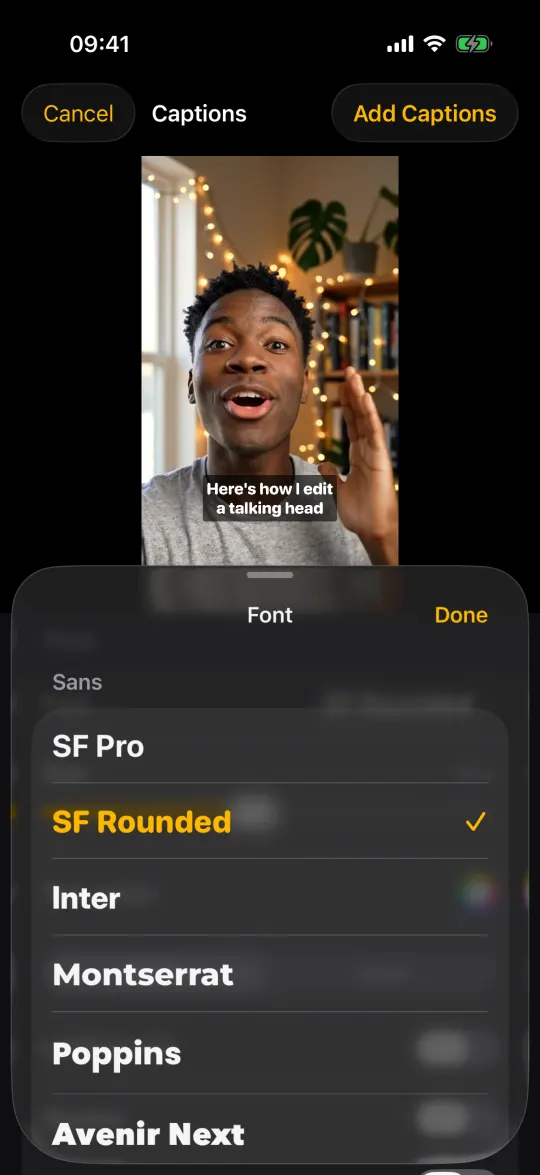
- 18 animated styles, or None. Word box (the default), Highlight, Sliding box, Boxed karaoke, Colour glide, Bold creator, Marker, Gradient sweep, Pop, One word, Typewriter, Fade, Slide up, Bounce, Karaoke Documentary, Emoji emphasis and Kinetic scatter, with a highlight color you choose, previewed live on your own video. Animated captions cost 10 credits per video, charged once when the render starts; None gives you plain captions at no extra cost.
- Styling that stays readable. 29 fonts in five styles, text color, a background box, outline and shadow controls, position and all caps. Long captions wrap onto more lines but never cover more than 45% of the frame.
Captions are burned into the video BRoll King renders, so they look the same on every platform; if you want closed captions that viewers can switch off, use the platform's own captions instead. BRoll King doesn't add a watermark.
Price: it isn't free. When it launches you can start with 250 free credits for your first 30 days, no card needed; plans start at $19 a month. BRoll King isn't on the App Store yet — get one email the day it launches.
The best free caption apps for iPhone
If you'd rather not pay anything, these apps burn captions into the video for free, according to their developers.
Edits: best free pick for Reels and short-form
Instagram's free editor for iPhone and Android is the easiest recommendation: Meta calls its auto captions free, unlimited and fully customizable, and exports have no watermark, in up to 4K. You sign in with an Instagram account.
Adobe Premiere on iPhone: best free pick for longer edits
Adobe's free Premiere app includes unlimited auto captions, and the free version exports unlimited 4K videos with no watermark. It is also a full multi-track editor, so it suits longer videos and more involved edits.
VN: free captions that run on the phone
VN's auto captions are free when they run on the phone, using its Tiny and Base models, with no watermark or subscription; its cloud captioning costs credits. VN itself is free with no watermark.
YouTube Create: best free pick for YouTube and Shorts
Google's free editor adds captions or subtitles in one tap, in selected languages, and exports up to 4K at 60 fps. It runs on iPhone XR or later with iOS 17, and on Android.
CapCut: trendy caption styles, if your plan includes them
CapCut has auto captions on mobile, desktop and web. Whether they are included in the free plan is less clear: CapCut's own pages disagree, so check in the app before you build a routine around it. Normal CapCut exports have no watermark.
Captions built into TikTok, Instagram and YouTube
If you post to one platform, its own captions cost nothing and need no extra app.
- TikTok generates auto captions that creators can edit once they're created, and viewers can turn them off from the share panel.
- Instagram uses speech recognition to create closed captions for reels. Turn on Enable closed captions under More options before you share (there is also a toggle to translate them), or change it later by editing the reel.
- YouTube creates automatic captions with speech recognition. YouTube itself says their quality varies and recommends reviewing and editing them in YouTube Studio under Subtitles; you can also upload your own caption file.
The catch: the platform decides how they look, and they live on that platform only. If you post the same video in three places, or want captions as part of the design, you need them in the video itself.
Dedicated caption apps: Captions, Zeemo and VEED
Apps built only for captions tend to be freemium: a free tier to try them, then a subscription.
- Captions (made by Mirage): the free plan includes captions in 100+ languages with one caption template, and basic edits — captions, trims, zooms, sounds, voiceover, transitions — export without a watermark. Other features ask you to upgrade to a paid plan — plans change often, so check Captions’ pricing page for the current ones.
- Zeemo: the free plan gives 120 credits a year, videos up to 1 minute and 200 MB, and 720p export; watermark removal and SRT export aren't included. Pro starts at $8 a month, billed yearly.
- VEED: its auto-subtitle tool is free to start, but free exports carry a VEED watermark and are limited to 720p, and downloading subtitle files needs a paid plan. VEED is mainly a web editor, with separate iPhone apps.
What about iMovie, Clips and Live Captions?
- iMovie doesn't list automatic captions; Apple's guide covers titles, which you type yourself.
- Clips had Live Titles, which wrote your words on screen as you spoke. Apple has stopped updating Clips and removed it for new users on October 10, 2025.
- Live Captions (Settings › Accessibility, iPhone 11 or later) shows captions of any audio on your screen in real time. It is an accessibility feature, not a way to add captions to a video file.
How to get accurate, readable captions in any app
- Record clean audio. Speech recognition is only as good as the sound it hears. A microphone close to your mouth fixes more caption errors than any app setting.
- Proofread proper nouns first. Names, brands, places and jargon are where automatic captions fail most visibly. The W3C calls automatic captions a starting point, not a finished result.
- Keep captions short. One or two short lines at a time are easier to read on a phone than a paragraph. Break lines at natural pauses, not in the middle of a phrase.
- Mind the overlays. Short-video apps draw buttons and text over the bottom and right of the video. Keep captions clear of them — and of your face.
- Use contrast. White text with a dark outline, shadow or box stays readable over any background.
- Animate sparingly. Word-by-word highlights help viewers follow fast speech; constant bouncing text is tiring. Pick one style and keep it.
FAQ
What is the best caption app for iPhone?
It depends on the job. For free, unlimited captions with no watermark, Edits and Adobe Premiere are the best picks, and VN's on-device captions are free too. If you only post to one platform, its built-in captions may be all you need. For talking-head videos where you want the whole edit done, with an AI review that fixes misheard names, BRoll King (our app) is built for that job, though it isn't free.
What is the best free caption app for iPhone?
If you want unlimited captions with no watermark, Edits and Adobe Premiere both describe their auto captions as free and unlimited, and VN's on-device captions are free too. If you only post to one platform, its built-in captions may be all you need.
Can I add captions to a video for free without a watermark?
Yes. According to their developers, Edits, Adobe Premiere and VN export without a watermark on their free tiers, and all three can create captions automatically.
How much do captions cost in BRoll King?
Captions come from the premium transcript, which costs 3 credits per minute with a 15-credit minimum per video. The AI caption review costs 5 credits, and animated captions cost 10 credits per video; plain captions cost nothing extra. You start with 250 free credits for your first 30 days, no card needed, and plans start at $19 a month.
Does CapCut have free auto captions?
CapCut has auto captions on mobile, desktop and web, but its own pages disagree on which plans include them. Check in the app for your region before you rely on them.
Should I use burned-in captions or closed captions?
Burned-in captions look the same everywhere and can be styled, but nobody can turn them off. Closed captions are a separate track that viewers can switch on or off and that you can edit after posting; YouTube accepts .srt files. For short-form social video, burned-in captions are the common choice.
How accurate are automatic captions?
Good on clear audio, weakest on names, brands and technical terms. YouTube says the quality of its automatic captions varies and recommends reviewing them, and the W3C calls automatic captions a starting point. Proofread before you publish.
Sources
Competitor details were checked on September 29, 2026 on these pages. Apps change prices and features often — check the developer's own page before you decide.
- W3C WAI — captions and subtitles
- World Health Organization — deafness and hearing loss fact sheet (March 3, 2026)
- TikTok newsroom — introducing auto captions
- Instagram Help — manage closed captions for your reels
- YouTube Help — use automatic captioning
- YouTube Help — supported subtitle and closed caption files
- Instagram — Edits captions tutorial
- App Store (US) — Edits: Video Editor (4K export, no watermark)
- Adobe — Premiere mobile app (captions, free exports)
- VN — auto captions
- App Store (US) — YouTube Create
- YouTube Help — YouTube Create availability
- CapCut Help — auto captions
- CapCut Help — Standard vs Pro
- CapCut Help — removing the watermark when exporting
- Captions — pricing
- Captions Help — subscription plans
- Zeemo — pricing
- VEED Help — watermarks on free exports
- VEED Help — export resolution by plan
- VEED — auto subtitle generator
- Apple Support — Clips is no longer being updated
- Apple — Clips user guide: Live Titles
- Apple — iPhone user guide: Live Captions
- Apple — iMovie for iPhone user guide
Edits, Instagram, TikTok, YouTube, YouTube Create, Adobe Premiere, VN, CapCut, Captions, Zeemo, VEED and other product names are trademarks of their respective owners; iPhone, iMovie and Clips are trademarks of Apple Inc. BRoll King is independent and not affiliated with, sponsored by or endorsed by any of them. Details were checked on September 29, 2026; check each developer's site for current pricing and features.